
Turn Plain Text into Draw.io Diagrams
Write what you want in English. Skip Mermaid syntax, PlantUML code, and manual drawing. Get a grid-aligned, icon-accurate .drawio file in seconds.
Diagrams.so is a text to diagram tool that converts natural-language descriptions into native, editable Draw.io diagrams, with no Mermaid, PlantUML, or structured syntax required. Type 'API Gateway routes to three Lambda functions, each writing to its own DynamoDB table, with SQS dead-letter queues.' The AI parses that sentence, selects official AWS icons, enforces 10px grid alignment (RULE-04), groups related resources into labeled containers (RULE-06), and outputs valid mxGraphModel XML. Architecture warnings flag issues like a missing WAF (WARN-02), and VLM validation catches overlapping labels after render. Download the result as .drawio, PNG, or SVG. You describe the system in plain English, by voice, or from an image; the AI draws it. Free to start with 10 credits and your own API key.
What Is a Text-to-Diagram Tool?
A text-to-diagram tool converts written descriptions into visual diagrams. The key distinction is the input format. Manual tools need mouse clicks. Diagram-as-code tools need structured syntax with strict grammar rules. A text-to-diagram tool accepts the same language you'd use in a Slack message or design doc. Before AI-powered text-to-diagram tools, the closest alternatives were Mermaid and PlantUML. Mermaid uses a markdown-like syntax: you write 'graph LR; A-->B' to draw an arrow from A to B. PlantUML uses its own language with keywords like '@startuml' and specific arrow notations. Both require learning syntax. Both punish typos with compilation errors. Both have limited icon support. Diagrams.so's text-to-diagram approach eliminates the syntax barrier entirely. Write 'three EC2 instances behind an ALB in a private subnet, connecting to RDS PostgreSQL Multi-AZ in a separate data subnet.' The AI resolves every component to a specific icon, places them in the correct network topology, and draws labeled connectors showing the data flow direction. It doesn't just translate text to shapes. It applies architectural knowledge. RULE-02 ensures official cloud provider icons. RULE-03 prevents the AI from adding components you didn't ask for. RULE-07 labels every element clearly. After generation, five architecture warnings scan for common design risks. WARN-01 flags single-AZ deployments. WARN-03 catches databases without replicas. Voice-to-diagram input extends this further, letting you speak your description instead of typing it. The difference from diagram-as-code tools runs deeper than convenience. With Mermaid or PlantUML you are still the one making the structural decisions: you decide which node connects to which, which direction the graph flows, and where each subgraph boundary sits. The syntax only records choices you have already made in your head. Diagrams.so's text-to-diagram engine infers that structure for you. It reads the nouns in your description as candidate nodes, the verbs as edges, and prepositional phrases like 'in a private subnet' or 'across two availability zones' as grouping and topology cues. From those signals it decides the layout, the containment hierarchy, and the connector routing before a single shape is placed. Layout is where the inference does the most work. The engine applies a consistent left-to-right primary flow (RULE-05), snaps every shape to a 10px grid (RULE-04) so nothing lands half-aligned, sizes each container to fit its children, and reserves whitespace between labeled groups so the result reads cleanly at a glance. It routes connectors to avoid crossing through unrelated nodes wherever the topology allows. You describe intent; the engine handles the geometry that would otherwise cost you the most clicks in a manual editor. The same natural-language input works across diagram types, not just cloud architecture. Describe a process and you get a flowchart with decision diamonds and branch labels. Describe an ordered exchange between services, such as 'client sends a request to the auth service, which validates the token and returns a session,' and the AI produces a sequence diagram with lifelines and ordered messages. Describe entities and their relationships and you get an ERD with keyed tables and cardinality on the connectors. The diagram type auto-detects from your wording, or you can set it explicitly. Architecture diagrams pull in the official AWS, Azure, GCP, Kubernetes, and OCI icon sets, so a mention of 'EKS' or 'Cloud Run' resolves to the correct vendor glyph rather than a generic box. What you get back is not a flat picture. The output is a native .drawio file built on the mxGraphModel XML schema, which means every node, group, and connector remains a first-class object you can move, relabel, restyle, or delete. Open it in Draw.io desktop, the VS Code extension, or Confluence and keep editing exactly as if you had drawn it by hand, then export to PNG or SVG when you are ready to share. Because the diagram is editable rather than rasterized, the AI's first pass is a starting point you refine, not a black box you accept or regenerate wholesale. You can also seed a diagram from an existing screenshot or whiteboard photo, and browse the public gallery for example prompts and finished diagrams to adapt.
Key components
- Natural-language parsing that understands service names, relationships, and network topology
- Cloud service resolution mapping 'Lambda' to the AWS Lambda icon and 'Cloud Functions' to the GCP icon
- Automatic layout engine enforcing left-to-right flow (RULE-05) with 10px grid snap (RULE-04)
- Relationship inference from verbs: 'writes to' becomes a directed arrow, 'reads from' becomes a dashed arrow
- Subnet and VPC boundary detection from phrases like 'in a private subnet' or 'inside the VPC'
- Voice-to-diagram input for converting spoken system descriptions into diagrams hands-free
- Architecture warnings covering single-AZ (WARN-01), missing WAF (WARN-02), and no-replica (WARN-03) risks
- Native .drawio XML output with mxGraphModel structure compatible with Draw.io and Confluence
How to generate with AI
- 1
Write your description in plain English
Describe the system, process, or data flow in natural language up to 5,000 characters. Use specific service names: 'CloudFront CDN in front of an S3 static site' not 'a CDN in front of storage.' Mention relationships with directional verbs: 'sends events to,' 'reads from,' 'writes to.' Include topology hints: 'in a private subnet,' 'across two availability zones,' 'behind a load balancer.' The AI uses these cues for icon selection, layout, and architecture warning evaluation.
- 2
Pick your cloud provider
Select AWS, Azure, GCP, or General to load the corresponding icon library. This determines which vendor-specific icons the AI uses for recognized service names. Selecting AWS maps 'SQS' to the Amazon SQS icon. Selecting Azure maps 'Service Bus' to the Azure Service Bus icon. General mode loads standard shapes and UML symbols without vendor branding. The diagram type auto-detects from your description or you can override it manually.
- 3
Generate and review the output
Click generate. The AI produces mxGraphModel XML with grid-aligned shapes and labeled connectors. Architecture warnings appear alongside the diagram: WARN-01 if you described a single-AZ deployment, WARN-02 if a public endpoint lacks WAF mention. VLM visual validation flags overlapping text or tangled connectors. Export as .drawio for editing in Draw.io desktop or VS Code. Export to PNG for embedding in docs. Export to SVG for scalable web embedding.
Example prompt
Real-time data pipeline: IoT sensors publish MQTT messages to AWS IoT Core. IoT Core rule forwards messages to Kinesis Data Streams. A Kinesis Data Analytics application runs anomaly detection with a tumbling window of 60 seconds. Normal readings go to Kinesis Firehose, which batches them into Parquet files on S3. Anomalous readings go to an SNS topic that fans out to a Lambda function (writes alert to DynamoDB) and an SQS queue (consumed by a notification-service on ECS Fargate that sends push notifications via Pinpoint). Show the IoT Core, Kinesis components, and compute in separate labeled groups. Mark the S3 bucket with lifecycle policy annotation.
Example diagrams from the gallery


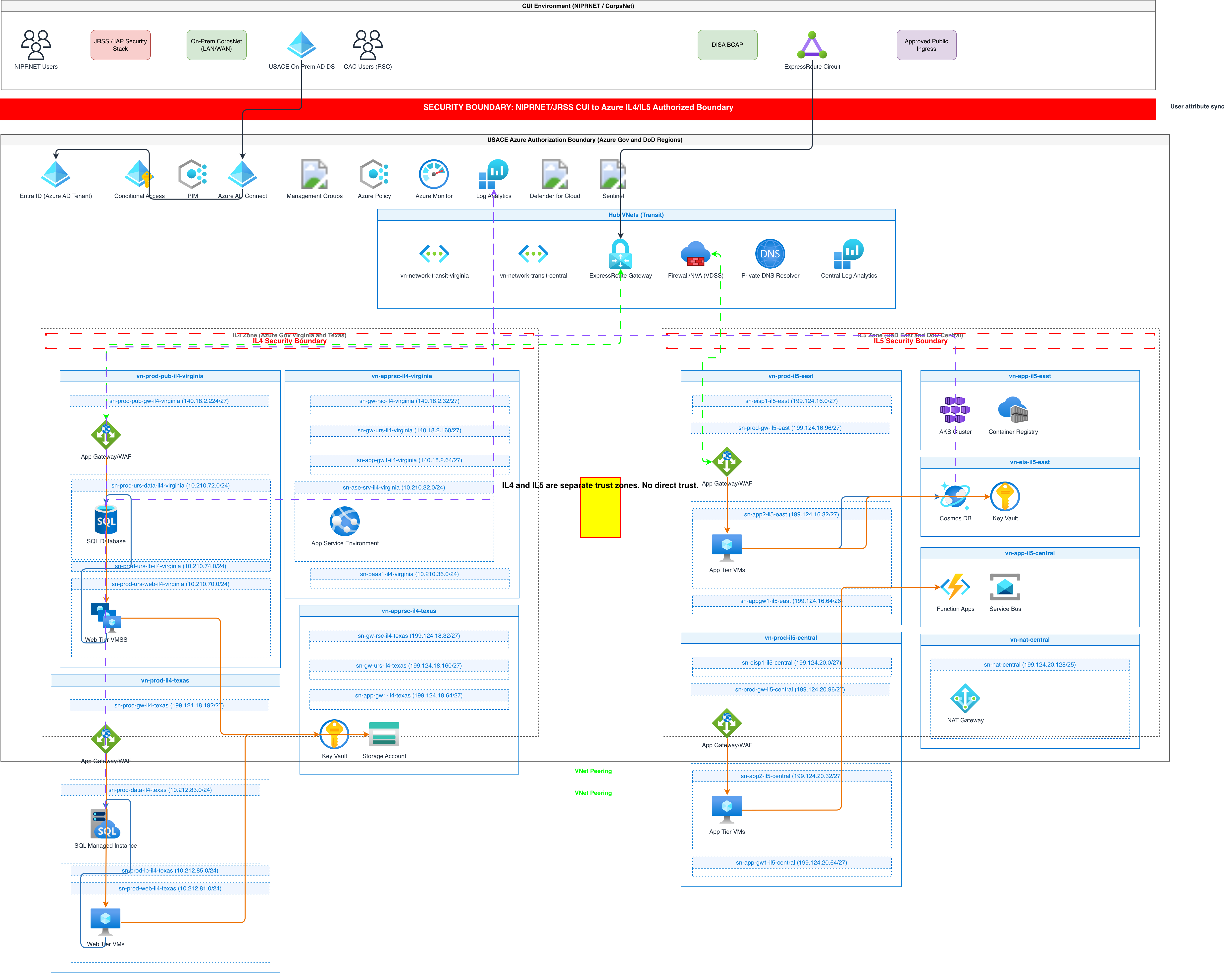

Text-to-Diagram: Natural Language vs Mermaid Syntax vs PlantUML
Three input methods for generating diagrams from text. Natural language requires no formal syntax. Mermaid uses a lightweight markdown-compatible grammar. PlantUML uses a verbose Java-influenced DSL. Each differs in learning curve, expressiveness, and output quality. The table below compares them across syntax requirements, cloud icon support, error handling, layout control, and architectural validation so you can pick the right input for a given workflow.
| Feature | Natural Language | Mermaid Syntax | PlantUML |
|---|---|---|---|
| Syntax requirements | None; write in plain English with service names and relationship descriptions | Lightweight but strict; 'graph LR; A-->|label|B' for directed edges, indentation-sensitive | Verbose; '@startuml', 'actor User', 'User -> System : action' with specific arrow notation |
| Cloud icon support | 30+ icon libraries auto-loaded; AI maps service names to official AWS, Azure, GCP icons | No built-in cloud icons; all nodes render as geometric shapes (rectangles, circles, diamonds) | stdlib includes AWS and Azure icon sets via include directives; requires explicit import statements per library |
| Error handling | Ambiguous terms flagged with WARN-05; diagram still generates with best-effort interpretation | Syntax errors produce compilation failures with line numbers; no partial output | Strict parser; missing semicolons or incorrect arrow types cause full render failure |
| Layout control | AI determines layout using RULE-05 (left-to-right); opinionated mode enforces strict adherence | Direction keywords (LR, TB, RL) set flow; subgraphs create grouping; limited fine-tuning | Layout hints like 'left to right direction'; GraphViz engine determines final placement |
| Architectural validation | Five architecture warnings (WARN-01 to WARN-05) plus VLM visual validation post-render | None; validates syntax only, no architectural or visual quality checks | None; validates syntax only, no assessment of design patterns or visual overlap |
| Best suited for | Rapid system visualization, architecture reviews, non-technical stakeholder communication | Markdown-embedded diagrams in GitHub READMEs, GitLab wikis, and Notion docs | Detailed UML models (class, sequence, state) in Java/enterprise documentation pipelines |
When to use this pattern
Use text to diagram when you want to skip syntax entirely and get a visual from a written description. Design docs, architecture decision records, and Slack-thread system explanations are ideal inputs. Copy-paste a paragraph from your RFC and generate the diagram instantly. If your team already embeds Mermaid in GitHub markdown files and needs diagrams to render in-repo, Mermaid is the better fit for that specific workflow. If you need full UML spec compliance with stereotypes and tagged values, PlantUML handles that level of detail. For everything else, especially ad-hoc architecture diagrams during meetings, incident response, or sprint planning, natural-language input gets you from description to .drawio file fastest. Reach for it during an incident bridge when you need to sketch the failing call path while people are still talking. Use it in a design review to turn a wall of RFC prose into a picture the room can critique. Onboard a new engineer by generating a diagram of the service they are about to own from a two-sentence description. Draft the 'before' and 'after' architectures for a migration proposal without opening a canvas. Capture a whiteboard photo from a planning session and convert it into a clean, shareable diagram. Because the output stays fully editable and exports to .drawio, PNG, or SVG, the generated diagram slots straight into your ADRs, runbooks, slide decks, and wiki pages, and you can start free with 10 credits using your own API key.
Frequently asked questions
How is text to diagram different from Mermaid?
Mermaid requires structured syntax with specific keywords and arrow notations. Text to diagram accepts plain English. Write 'user service calls payment service via gRPC' instead of memorizing Mermaid's edge syntax. The AI also adds 30+ cloud icon libraries and architecture warnings that Mermaid doesn't support.
What level of detail should I include in my text?
Name specific services and describe their connections. 'ECS Fargate behind ALB, connecting to Aurora PostgreSQL Multi-AZ' produces better results than 'containers behind a load balancer talking to a database.' The more concrete your description, the more accurate the icon selection and architecture warnings become.
Can I use voice input instead of typing?
Yes. Voice-to-diagram lets you speak your system description. It works well for whiteboard sessions or brainstorming where typing breaks the flow. The speech is transcribed and processed through the same AI pipeline, producing identical mxGraphModel XML output with grid alignment and architecture warnings.
What output formats are available?
Native .drawio XML is the primary output. The mxGraphModel XML opens directly in Draw.io desktop, the VS Code extension, and Confluence. You can also export to PNG for embedding in documents or SVG for scalable web graphics. All formats preserve the layout, icons, and labels from generation.
Does the AI add components I didn't mention?
No. RULE-03 explicitly prevents the AI from hallucinating components not present in your description. If you describe three services, you get three services. Architecture warnings may suggest additions (like noting a missing replica via WARN-03), but they appear as recommendations, not modifications to the diagram.
Related diagram generators
Generate Diagrams with AI, Not Drag-and-Drop
Write what your system does. The AI picks the notation, selects vendor icons, enforces grid alignment, and outputs valid mxGraphModel XML you can open in Draw.io.
Make Any Diagram from Text with AI
Describe your system, process, or data flow in plain English. Get a valid Draw.io diagram with correct symbols, aligned nodes, and exportable .drawio XML.
Generate Flowcharts from Text with AI
Describe a process in plain English. Get a valid Draw.io flowchart with correct ISO 5807 symbols, decision diamonds, and directional arrows.
Generate Sequence Diagrams from Text with AI
Describe interactions between services or actors. Get a valid Draw.io sequence diagram with UML 2.5 lifelines, activation bars, and message arrows.
Format converters
Convert JSON to a diagram
Paste a JSON structure — infrastructure, a service map, or config — and get a native, editable .drawio diagram with the entities and relationships drawn for you.
Convert Mermaid to an editable .drawio diagram
Paste your Mermaid and get a native .drawio you can actually edit — real draggable shapes and connectors instead of a rendered image, ready for Draw.io.