
Generate Diagrams with AI, Not Drag-and-Drop
Write what your system does. The AI picks the notation, selects vendor icons, enforces grid alignment, and outputs valid mxGraphModel XML you can open in Draw.io.
This AI diagram generator produces Draw.io diagrams from natural-language prompts without requiring you to learn Mermaid syntax, drag shapes, or manually align connectors. Describe a Kubernetes cluster with three namespaces, an Istio service mesh, and a PostgreSQL StatefulSet. The AI selects the right icons from 30+ libraries, applies left-to-right layout (RULE-05), groups related pods into namespace containers (RULE-06), and outputs valid mxGraphModel XML. Architecture warnings flag risks automatically: a StatefulSet without persistent volume claims gets WARN-05 for ambiguity. VLM visual validation catches overlapping labels post-render. The output downloads as .drawio, PNG, or SVG. No templates to customize. No connectors to redraw. Describe the system, generate the diagram.
What Is an AI Diagram Generator?
An AI diagram generator creates technical diagrams from text input using large language models trained on system architecture patterns. Unlike template-based tools that offer pre-built starting points you must modify, or diagram-as-code tools that require learning a DSL like PlantUML or Mermaid, an AI generator accepts unstructured natural language. You describe a system the way you'd explain it to a colleague. The AI determines the diagram type, selects appropriate symbols, resolves layout, and generates the output file. Diagrams.so's AI generator goes beyond simple shape placement. It recognizes cloud service names and maps them to official icons: write 'Lambda' and get the AWS Lambda icon, not a generic rectangle. Write 'Cloud Run' and get the GCP icon. The model applies seven generation rules (RULE-01 through RULE-07). RULE-01 ensures valid Draw.io XML output. RULE-02 enforces official cloud provider icons. RULE-03 prevents hallucinated components that weren't in your prompt. RULE-04 snaps shapes to a 10px grid. Five architecture warnings run after generation. WARN-01 detects single-AZ risk. WARN-02 flags unprotected public endpoints. WARN-03 catches databases without read replicas. These aren't suggestions. They're specific, actionable findings tied to your diagram. After the model generates XML, VLM visual validation renders the diagram and scans for visual defects: overlapping text, crossing arrows, or orphaned nodes that syntax checking alone would miss.
Key components
- Natural-language parsing that maps service names to official AWS, Azure, and GCP icons
- Seven generation rules (RULE-01 to RULE-07) enforcing valid XML, grid alignment, and labeling
- VLM visual validation detecting overlapping text and crossing connectors post-render
- Five architecture warnings (WARN-01 to WARN-05) for single-AZ, missing WAF, and replica risks
- Opinionated mode locking layout to prevent manual edits that break diagram readability
- Voice-to-diagram input for hands-free system descriptions during whiteboard sessions
- Native .drawio XML output compatible with Draw.io desktop, VS Code, and Confluence
- Automatic component grouping into labeled containers for VPCs, namespaces, and subnets
How to generate with AI
- 1
Write your system description
Describe the system in plain English up to 5,000 characters. Name specific services: 'API Gateway fronting three ECS Fargate services behind an ALB' not 'a load balancer in front of some services.' Specificity drives icon selection and architecture warning accuracy. Mention relationships explicitly: 'order-service writes to Aurora PostgreSQL with Multi-AZ failover' tells the AI both the data store and its redundancy configuration.
- 2
Configure generation settings
Select the cloud provider (AWS, Azure, GCP, or General) to load the correct icon library. Choose a diagram type or let the AI infer it from your description. Enable opinionated mode for strict RULE-05 left-to-right layout. The AI applies RULE-06 grouping automatically, placing related services inside labeled containers like VPC boundaries or Kubernetes namespaces.
- 3
Review warnings and export
The AI generates mxGraphModel XML and runs five architecture checks. A database without a replica triggers WARN-03. A public ALB without WAF triggers WARN-02. VLM visual validation flags layout issues like overlapping service labels. Fix any concerns, then download as .drawio for editing in Draw.io, or export to PNG or SVG for presentations and documentation. The XML is Git-friendly for version control.
Example prompt
Multi-region disaster recovery architecture on AWS: Primary region us-east-1 has Route 53 with failover routing to an ALB, three ECS Fargate tasks running behind the ALB, Aurora PostgreSQL with Multi-AZ and a cross-region read replica in us-west-2. S3 bucket with cross-region replication to us-west-2. Secondary region us-west-2 has a standby ALB, ECS cluster scaled to zero, the Aurora read replica promotable to primary, and the replicated S3 bucket. Global Accelerator sits in front of Route 53. CloudWatch alarms in both regions trigger SNS notifications. Show VPC boundaries, public and private subnets, and NAT gateways in each region.
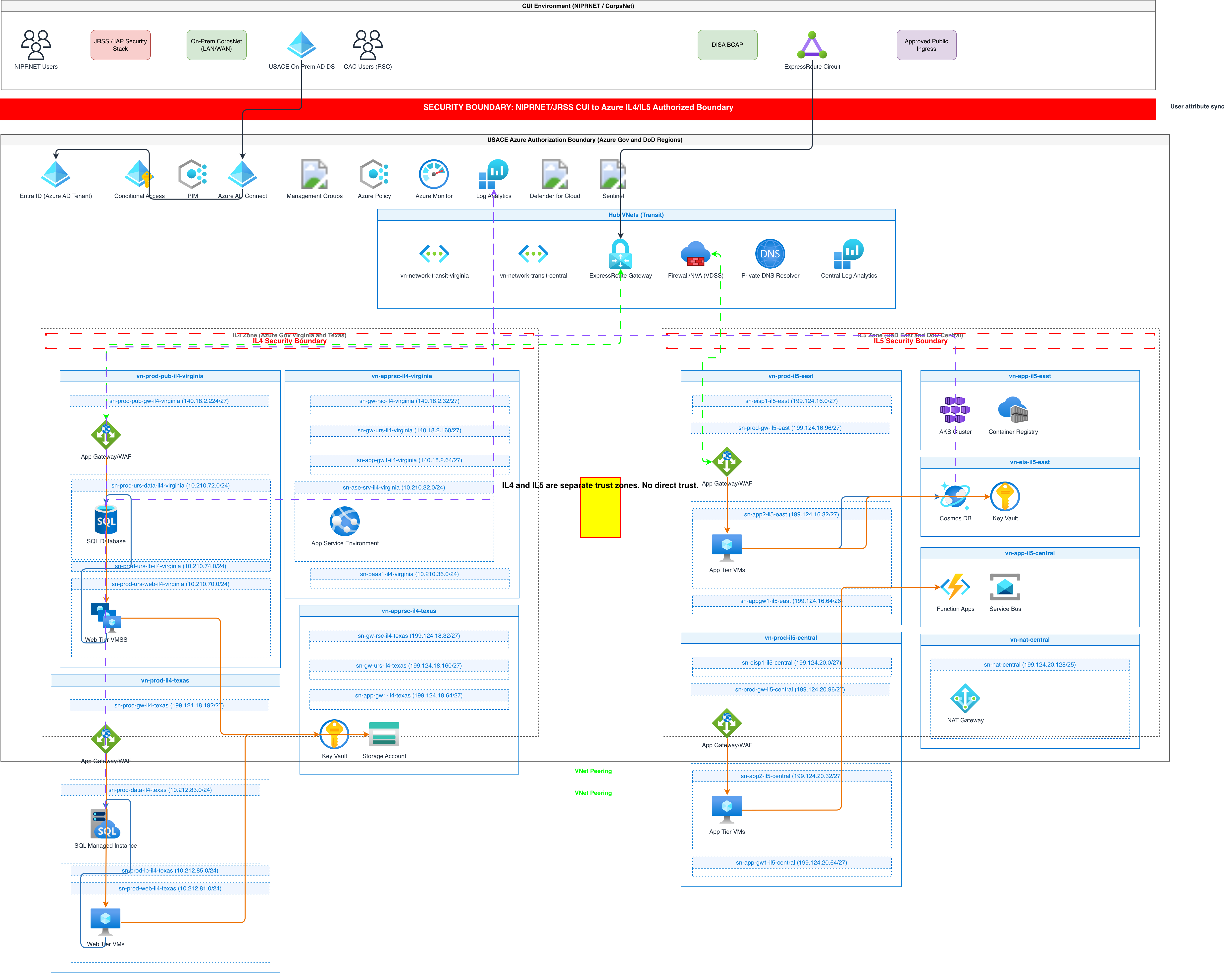
Example diagrams from the gallery



AI Generation vs Templates vs Diagram-as-Code
Three distinct methods for producing technical diagrams. AI generation uses natural language as input. Templates offer pre-built layouts you modify. Diagram-as-code tools compile structured syntax into visual output. Each has different strengths in speed, customization, and reproducibility.
| Feature | AI Generation | Templates | Diagram-as-Code |
|---|---|---|---|
| Learning curve | None; write in plain English, the model handles notation and layout decisions | Low; pick a template and modify labels, but understanding the template's structure takes time | Moderate to high; Mermaid is simpler, PlantUML is verbose, D2 is newer with less documentation |
| Customization depth | Controlled by prompt specificity; opinionated mode prevents layout drift, manual editing available after export | High within the template's structure; adding new component types often requires starting over | Full control over every element via code; styling requires learning tool-specific syntax |
| Cloud icon support | 30+ libraries with official AWS, Azure, GCP, and Kubernetes icons selected automatically | Pre-populated in the template; adding icons from other providers requires manual import | PlantUML has stdlib with AWS/Azure icons; Mermaid has none; D2 supports custom SVG imports |
| Iteration speed | Edit the prompt and regenerate in seconds; no manual repositioning needed | Modify in the editor; adding components to a crowded template requires manual rearrangement | Edit code and recompile; layout engine repositions automatically but may break preferred placement |
| Validation capabilities | Architecture warnings (WARN-01 to WARN-05) plus VLM visual validation for layout defects | No automated validation; errors caught during manual review only | Syntax validation prevents compilation errors; no architectural or visual validation |
When to use this pattern
Use an AI diagram generator when you have a system design in your head and want to visualize it without fighting tooling. Architecture decision records, design docs, RFC illustrations, and sprint kickoff diagrams are ideal candidates. The speed advantage matters most during early design when the architecture changes frequently and redrawing manually wastes time. If you need pixel-exact placement for a polished presentation, export the .drawio file and fine-tune in Draw.io. If your organization mandates Mermaid in markdown files, diagram-as-code may be a better fit for those specific documents. For one-off diagrams during meetings, architecture reviews, or incident post-mortems, AI generation gets you from thought to diagram faster than any other method.
Frequently asked questions
How does the AI diagram generator differ from a template library?
Templates give you a fixed starting layout to modify. This AI diagram generator creates diagrams from scratch based on your specific description. No pre-built structure to work around. The AI selects icons, determines layout, and applies architecture warnings that templates can't provide because they don't understand your system's context.
Can the AI generate diagrams for multiple cloud providers at once?
Yes. Describe a multi-cloud setup in your prompt, like 'AWS Lambda calling Azure Cognitive Services via API Gateway.' The AI loads icons from both provider libraries. Each service gets its official icon. Select 'General' as the provider to enable cross-cloud icon loading from all 30+ available libraries.
What happens if my description is vague?
The AI generates what it can and flags unclear parts with WARN-05 (ambiguous component). For example, writing 'a database' without specifying the engine produces a generic database icon with a warning suggesting you specify PostgreSQL, MySQL, DynamoDB, or another concrete service. Warnings don't block generation.
Is the generated diagram editable?
Fully. The output is standard mxGraphModel XML in .drawio format. Open it in Draw.io desktop, the VS Code draw.io extension, or Confluence. Move nodes, add shapes, change labels, adjust connector routing. The 10px grid alignment and RULE-06 grouping from generation are preserved in the file.
How does VLM visual validation work?
After the AI generates the mxGraphModel XML, a vision-language model renders the diagram and inspects it visually. It detects overlapping labels, crossing arrows, orphaned nodes, and text clipping that syntax-only validation misses. Issues appear as actionable findings alongside the architecture warnings panel.
Related diagram generators
Make Any Diagram from Text with AI
Describe your system, process, or data flow in plain English. Get a valid Draw.io diagram with correct symbols, aligned nodes, and exportable .drawio XML.
Turn Plain Text into Draw.io Diagrams
Write what you want in English. Skip Mermaid syntax, PlantUML code, and manual drawing. Get a grid-aligned, icon-accurate .drawio file in seconds.
Online Flowchart Maker Powered by AI
Describe your process. Get a flowchart with correct decision diamonds, swim lanes, and directional arrows. No desktop software. No manual shape dragging.
Build Architecture Diagrams from Text Descriptions
Describe your cloud infrastructure or system design. Get a Draw.io architecture diagram with official vendor icons, VPC boundaries, and architecture warnings.