
Generating architecture diagrams in Claude Code and Cursor
Ten minutes, most of it waiting for npm. At the end your agent can draw the system it has been editing all day.
To generate architecture diagrams in Claude Code, Claude Desktop or Cursor, install the Diagrams.so MCP server with npx and give it an API key. The agent then has tools for generating a diagram from a prompt, editing an existing one in place, reading the architecture warnings on it, and exporting the result as a native .drawio file. You need Node 18 or newer and a Diagrams.so account. The key lives in Settings, under AI Provider, or the login command will mint one through a device flow.
Install the MCP server
- 1
Claude Code
Add the server with the CLI, restart, then check it with /mcp. You should see diagrams-so and 23 tools. If you would rather not handle a key, run npx @diagrams-so/mcp@latest login once and the device flow mints one for you.
claude mcp add diagrams-so -- npx -y @diagrams-so/mcp@latest - 2
Claude Desktop
Edit claude_desktop_config.json. On macOS it lives in ~/Library/Application Support/Claude/. Quit Claude Desktop properly and reopen it, because closing the window is not enough on macOS. If you would rather not touch config files, the one-click .mcpb bundle is attached to the latest release on GitHub: double-click, paste your key, done.
{ "mcpServers": { "diagrams-so": { "command": "npx", "args": ["-y", "@diagrams-so/mcp@latest"], "env": { "DIAGRAMS_API_KEY": "dgz_live_your_key" } } } } - 3
Cursor
Use ~/.cursor/mcp.json, or the project-level .cursor/mcp.json if you want it scoped to one repo. Then open Settings, MCP, and confirm the server shows green.
{
  "mcpServers": {
    "diagrams-so": {
      "command": "npx",
      "args": ["-y", "@diagrams-so/mcp@latest"],
      "env": {
        "DIAGRAMS_API_KEY": "dgz_live_your_key"
      }
    }
  }
}
Using it once it is connected
Ask in plain language and the agent picks the tool. "Generate an AWS diagram for this repo: ALB in front of three EC2 instances in private subnets, RDS Postgres with a read replica, S3 for static assets. Then show me the architecture warnings." You get a .drawio file and a list of what the design gets wrong. Then iterate, which is the part that makes this worth setting up. "Add a NAT gateway per availability zone and move the read replica to a second AZ. Do not redraw the rest." The edit tool changes the existing diagram in place. The agent is not regenerating from scratch, so nothing you liked about version two goes missing in version five.
Reviewing what it drew
Ask what warnings are on the diagram and you get back things worth catching: a single-AZ database, a resource exposed to the internet that should not be, no backup path. Then pick one. "Fix the single-AZ database warning and leave everything else alone." The fix tool touches one problem. That is the difference between a review and a regeneration.
Exporting
Ask for it as drawio and save it into the repo. drawio and svg are the two formats the API offers. Commit the .drawio file. It is XML, so it diffs, and anyone on the team can open it in draw.io or the VS Code extension without an account.
What things cost
Generating, editing, fixing and re-laying out cost credits. Reading, exporting, listing versions, pulling warnings and searching the gallery are free, so an agent that reads a lot and writes occasionally is cheap to run. The balance is the same one the web app uses, on every plan including Free. Test keys bill that same balance, so there is no free sandbox mode.
When it does not work
Server does not appear after restart: run the server directly in a terminal. If Node is older than 18 it fails there with a clearer message than the client gives you. 401 on every call: the key is wrong, revoked, or has a stray newline from a copy and paste. Keys start dgz_live_ or dgz_test_. 402: the credit balance is empty. There is no overage, so calls stop rather than running up a bill. 429: sixty calls a minute on a live key, twenty on a test key. The response carries Retry-After. 503 on a generate: a dependency is down and the API refused to do billable work it could not meter. Retry.
Check the server outside the client
npx @diagrams-so/mcp@latest loginReal-world examples

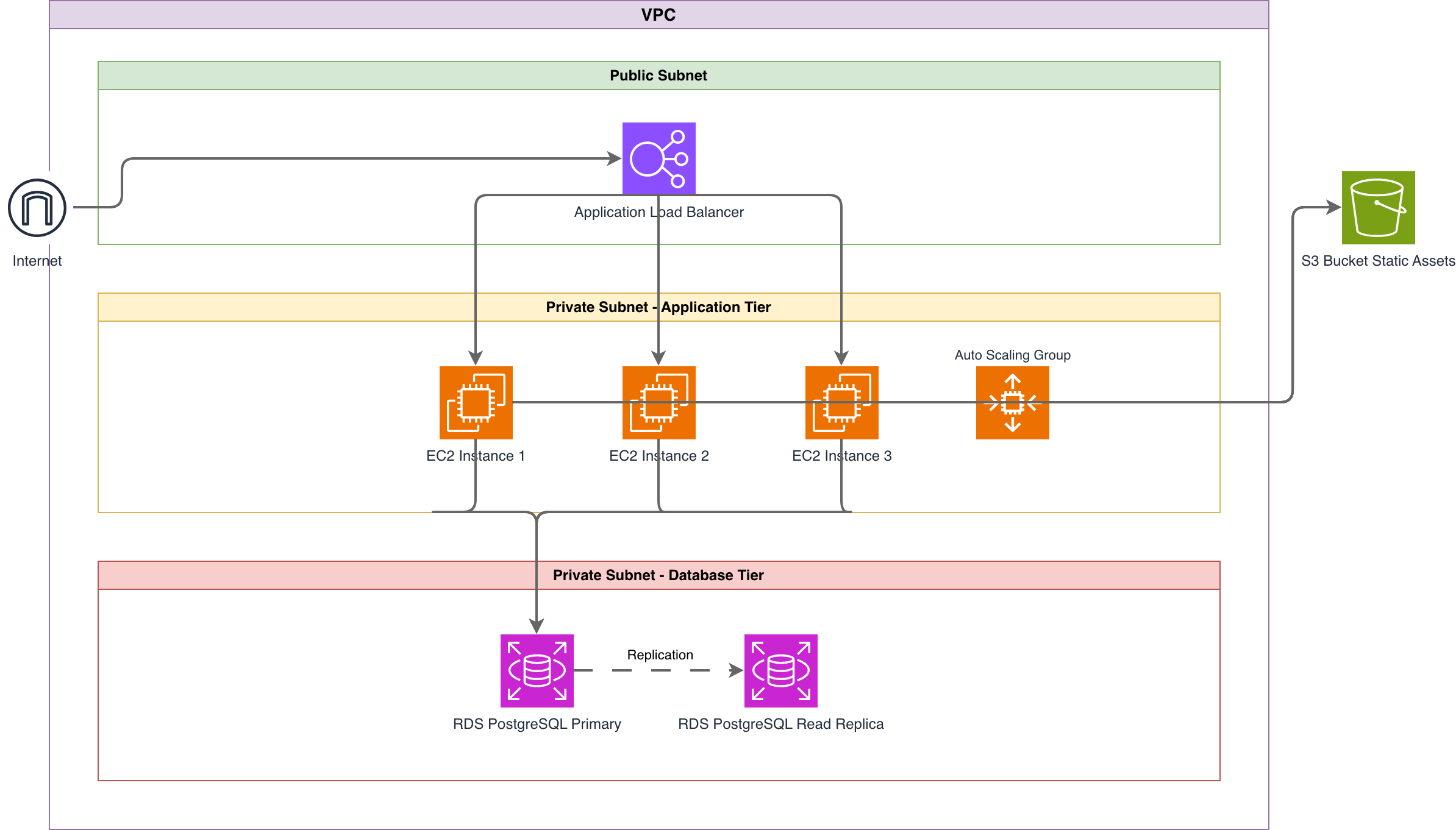
Generate these diagrams with AI
Generate AWS architecture diagrams from text
Describe your AWS infrastructure in plain English. Get a valid Draw.io diagram with official AWS icons, VPC boundaries, and Multi-AZ placement.
Build Architecture Diagrams from Text Descriptions
Describe your cloud infrastructure or system design. Get a Draw.io architecture diagram with official vendor icons, VPC boundaries, and architecture warnings.
Turn Plain Text into Draw.io Diagrams
Write what you want in English. Skip Mermaid syntax, PlantUML code, and manual drawing. Get a grid-aligned, icon-accurate .drawio file in seconds.
Related guides
Frequently asked questions
Does this work with Copilot, Windsurf or Zed?
Any MCP client should work. Claude Code, Claude Desktop and Cursor are the three we test on every release, so anything else is should-work rather than verified.
Does it read my repository?
No. It receives whatever your agent puts in the prompt and nothing else. If the agent pastes a Terraform file in, that goes with it, but the server never reaches into your filesystem on its own.
Do I have to paste an API key?
Not since 1.4.0. Run npx @diagrams-so/mcp@latest login once and it walks a device flow in the browser, then caches the credential locally. Pasting a key from Settings, under AI Provider, still works if you prefer it.
Can I use it without an agent?
Yes, through the REST API or the Python and TypeScript SDKs. Same surface, same credits.
Is there a remote server I can point at instead?
No. The server is local stdio only. It runs on your machine and calls the API over HTTPS.
Using this in a team or a pipeline? The MCP reference lists all 23 tools and what each one costs, and the quickstart covers the key.