
Convert PlantUML to an editable .drawio diagram
Paste your PlantUML and get a native .drawio you can edit — real draggable shapes and connectors instead of a rendered PNG, ready for Draw.io.
To convert PlantUML to .drawio with Diagrams.so, paste your PlantUML source and the AI rebuilds it as a native Draw.io diagram: participants, components, and classes become real draggable shapes, relationships and messages become editable connectors, and the result downloads as a native .drawio (mxGraphModel XML) file. Where PlantUML renders to a fixed PNG or SVG, the converted diagram stays fully editable — you can move nodes, restyle them, group them, and swap plain boxes for official AWS, Azure, or GCP icons before exporting to PNG or SVG.
What you get with Diagrams.so
Text-to-diagram
Describe or paste your source in plain English and get a diagram back in seconds.
Native .drawio export
Output is real mxGraphModel XML that opens and stays editable in Draw.io.
30+ icon libraries
Official AWS, Azure, GCP, and Kubernetes icon sets, auto-selected per service.
Architecture warnings
Best-practice checks flag issues like single-AZ or public exposure, with one-click fixes.
Community gallery
Browse, fork, and remix real architecture diagrams to start from a proven pattern.
Voice-to-diagram
Dictate an architecture out loud and watch it render — available on every plan.
How to convert PlantUML to an editable .drawio diagram
- 1
Paste your PlantUML source
Drop in the text between your @startuml and @enduml — a component diagram, sequence diagram, class diagram, or deployment diagram. There is no PlantUML server or Java runtime to set up; the diagram is rebuilt from the source you paste.
- 2
Elements become native shapes
Participants, components, classes, and actors each become a native Draw.io shape, and the arrows and associations between them become real connectors — objects you can select and move rather than pixels in an image.
- 3
Relationships and labels are kept
Message order in a sequence, the direction and labels on associations, and stereotypes carry across, so the converted diagram reads the same as PlantUML rendered it — just on an editable canvas.
- 4
Optionally add cloud icons
Because the shapes are native, a component that represents a real service can be swapped for its official AWS, Azure, GCP, or Kubernetes icon, turning an abstract UML sketch into a concrete architecture diagram.
- 5
Edit and export the .drawio
Rearrange, restyle, or extend the diagram, then download the native .drawio file or export to PNG or SVG. It opens in Draw.io desktop, the VS Code extension, and Confluence with no conversion step.
Worked example
PlantUML
@startuml
actor User
component "API Gateway" as API
component "Auth Service" as Auth
component "Orders Service" as Orders
database "PostgreSQL" as DB

User --> API
API --> Auth
API --> Orders
Orders --> DB
@enduml
Resulting .drawio
A Draw.io diagram with a User actor connecting to an API Gateway component, which fans out to an Auth Service and an Orders Service; the Orders Service connects down to a PostgreSQL database shape. Every element is a native, draggable object and every association is an editable connector. From here you can replace the API Gateway box with an official gateway icon, group the services behind a boundary, or add a cache — then export the whole thing as .drawio, PNG, or SVG.
PlantUML renders; .drawio lets you edit
PlantUML is a text-to-UML tool: you write source between @startuml and @enduml and a renderer produces an image. That is a great fit for diagrams that live in a repository, where the text is what you review and regenerate. It is a poor fit when you need to hand the diagram to someone who does not write PlantUML, nudge a single component without re-rendering the whole picture, apply real cloud icons, or place the diagram precisely in a slide. A .drawio file makes the opposite trade-off: it is an editable canvas of objects anyone can open and rearrange, at the cost of the terse text source. Converting PlantUML to .drawio bridges the two — you keep the speed of drafting in PlantUML, then move to an editable canvas for the layout, icons, and polish that PlantUML was never designed to handle. It is especially useful when a UML component or deployment diagram needs to become a presentation-ready architecture diagram.
What converts cleanly, and what to check
Component and deployment diagrams convert most directly: components, nodes, interfaces, and the arrows between them all become native objects. Sequence diagrams map to lifelines and ordered messages, and class diagrams to boxes with their attributes, methods, and relationships. A few things reward a second look after conversion. PlantUML's automatic layout and Draw.io's differ, so a dense diagram may want a quick tidy. Skinparam theming and colours are cosmetic instructions rather than structure, so re-apply any styling that carries meaning. And where a UML component stands in for a specific cloud service, that intent lives in your head rather than the source, so swapping in the right icon is where you add the most value. In practice the structure comes across faithfully, and the work afterward is enrichment rather than reconstruction.
You own the output, and can take it further
The converted file is native mxGraphModel XML, the format Draw.io uses, so it is yours to keep and edit anywhere — the free Draw.io desktop app, the web editor, the VS Code extension, or Confluence — with no account required to open it. That makes the conversion a genuine upgrade rather than a lock-in: a teammate can take the .drawio and keep working. It also unlocks things UML notation cannot express well. On an editable canvas you can add official AWS, Azure, GCP, and Kubernetes icons, draw boundaries around groups of components, run the architecture warnings engine to sanity-check a design, and export a clean image for a deck or a runbook. And if you find yourself starting more diagrams from scratch, you can describe the system in plain English and generate the same editable .drawio directly, skipping the UML syntax entirely.
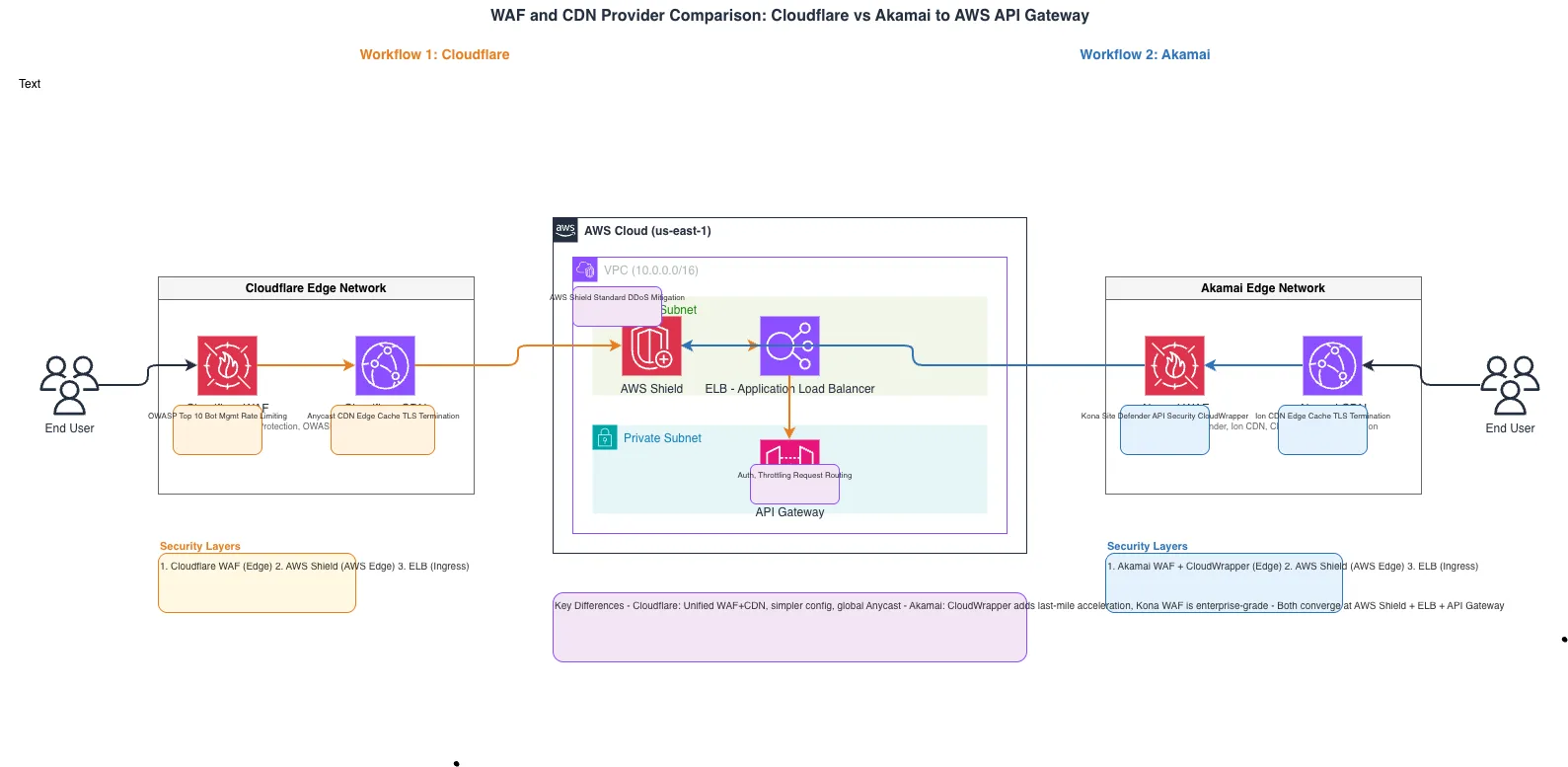
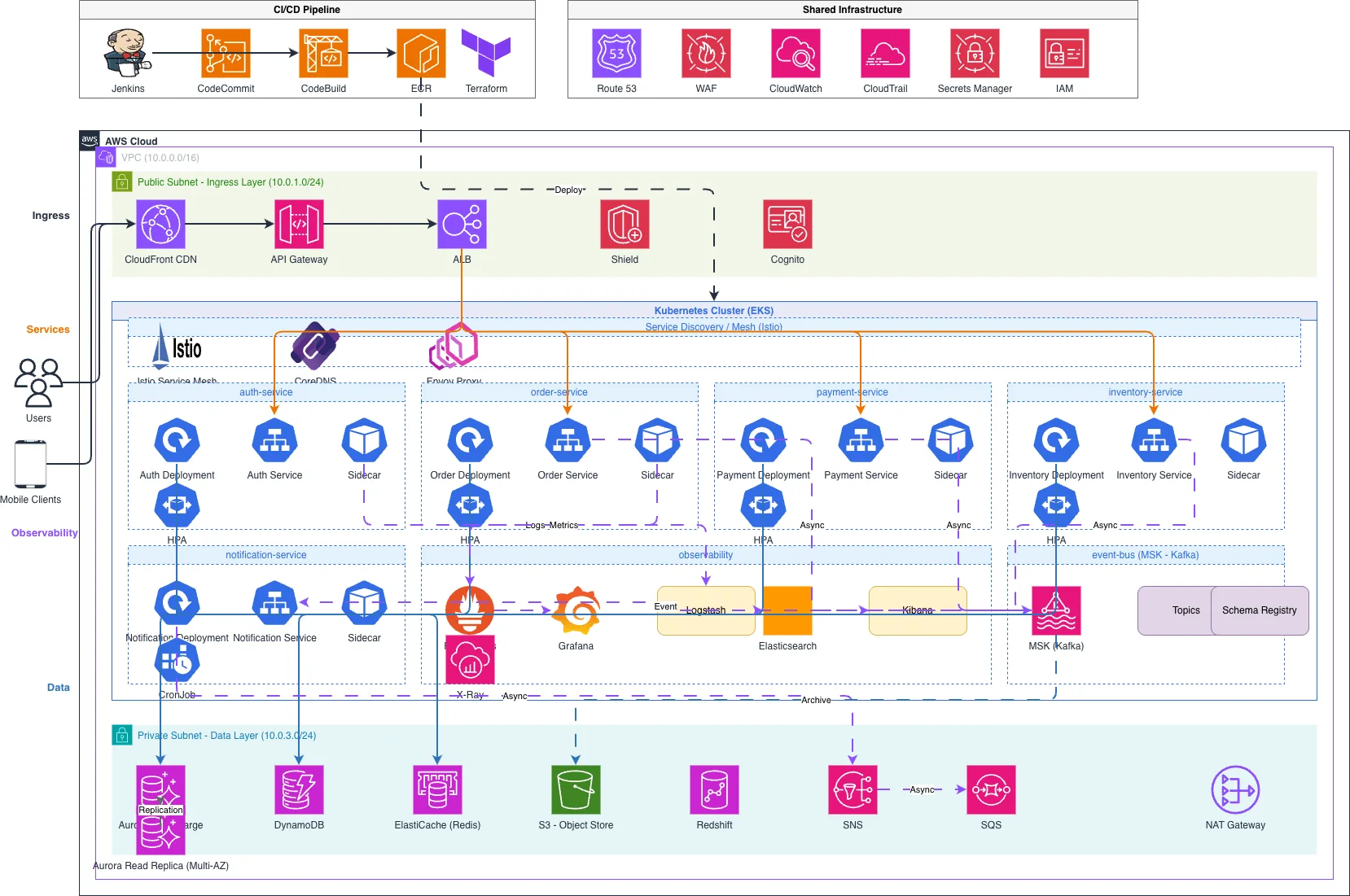
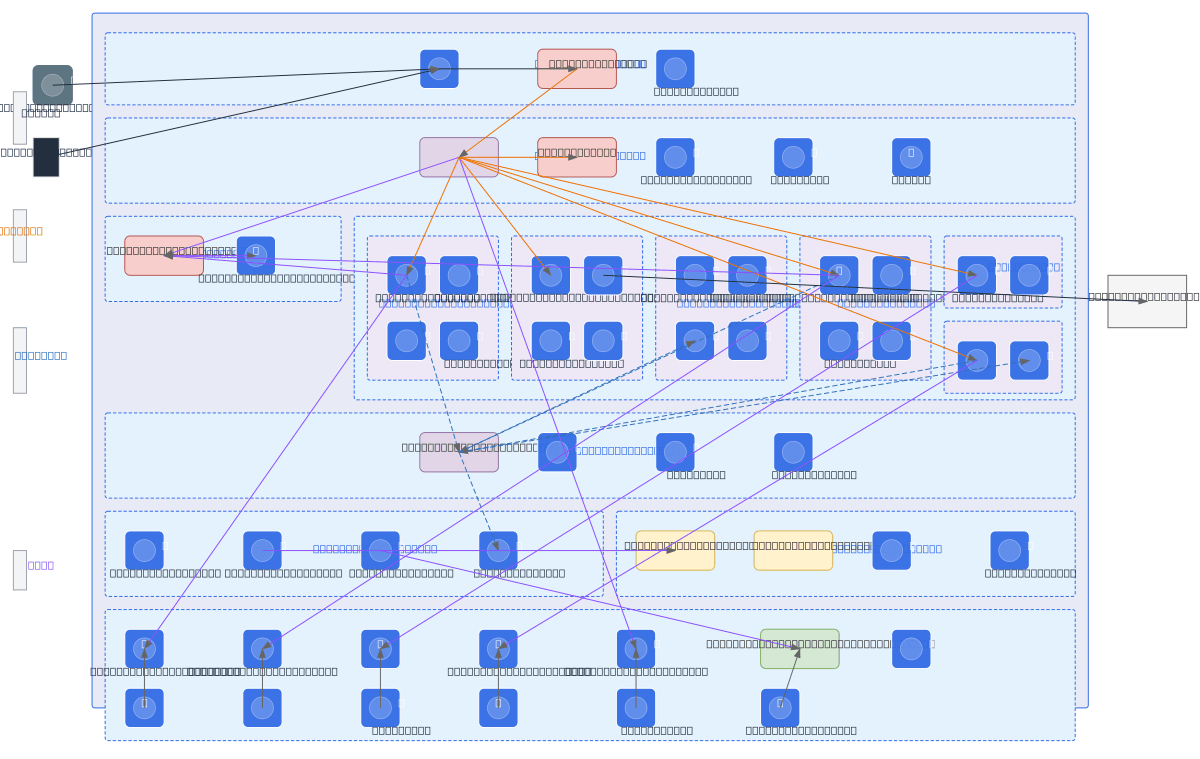
Example diagrams from the gallery

Diagrams.so vs PlantUML's own output
PlantUML is excellent at turning UML text into a rendered image. The difference appears when you need to edit, brand, or enrich that diagram rather than only view it.
| Feature | Diagrams.so | PlantUML render |
|---|---|---|
| Output | Editable native .drawio shapes | Static PNG or SVG image |
| Editing | Drag-and-drop on a canvas | Edit the text and re-render |
| Cloud icons | Official AWS/Azure/GCP/K8s | Generic UML shapes |
| Opens in Draw.io | Yes, native format | No |
| Best for | Polishing, presenting, architecture | UML-as-code in Git |
Frequently asked questions
Does this produce a native .drawio or just an image?
A native .drawio (mxGraphModel XML) file. Every PlantUML element becomes a draggable shape and every relationship an editable connector, so you can rearrange and restyle the diagram, then export to PNG or SVG. It opens directly in Draw.io.
Which PlantUML diagram types are supported?
Component and deployment diagrams convert most directly, with sequence and class diagrams supported too. Elements, relationships, message order, and labels are preserved; dense diagrams may benefit from a quick layout pass afterward.
Do I need a PlantUML server or Java?
No. Paste the PlantUML source between @startuml and @enduml and the diagram is rebuilt in the browser. There is nothing to install, and the free tier lets you try a conversion without a card.
Will my relationships and message order be kept?
Yes. Associations and their direction and labels, and the order of messages in a sequence diagram, carry across so the converted diagram reads the same as PlantUML rendered it — on an editable canvas.
Can I turn a UML component diagram into an architecture diagram?
Yes. Once the shapes are native you can replace generic components with official AWS, Azure, GCP, or Kubernetes icons and add boundaries, turning an abstract UML sketch into a concrete cloud architecture diagram.
How accurate is the conversion?
For typical diagrams it reconstructs the elements and their relationships well enough to edit rather than redraw. Because it is an AI reconstruction, review the first draft to confirm every element is present and adjust anything the source left implicit.