
Convert draw.io to PNG or SVG
Import a .drawio file and export a crisp PNG or SVG — with resolution and transparent-background options — no desktop app to install.
To convert a .drawio file to PNG or SVG with Diagrams.so, import the file (importing .drawio is free on every plan), choose your format and options — scale or resolution, a transparent or solid background, and how tightly to crop — then download the image. Because Diagrams.so reads the native .drawio XML, the export is pixel-accurate to the diagram, and you can optionally tidy the layout, add official cloud icons, or run the architecture warnings before exporting. You can also share the diagram as a hosted link with a preview image instead of, or as well as, downloading a file.
What you get with Diagrams.so
Text-to-diagram
Describe or paste your source in plain English and get a diagram back in seconds.
Native .drawio export
Output is real mxGraphModel XML that opens and stays editable in Draw.io.
30+ icon libraries
Official AWS, Azure, GCP, and Kubernetes icon sets, auto-selected per service.
Architecture warnings
Best-practice checks flag issues like single-AZ or public exposure, with one-click fixes.
Community gallery
Browse, fork, and remix real architecture diagrams to start from a proven pattern.
Voice-to-diagram
Dictate an architecture out loud and watch it render — available on every plan.
How to convert .drawio to a PNG or SVG
- 1
Import your .drawio
Upload the .drawio file or paste its XML. Importing existing .drawio files is free on all plans, and because the format is native, nothing is lost in translation — the diagram loads exactly as you drew it.
- 2
Choose PNG or SVG
Pick a raster PNG for slides, docs, and chat, or a vector SVG for infinite-scale rendering on the web — and for print, since a vector stays sharp at any size. Both keep the diagram faithful to the source.
- 3
Set resolution and background
Export PNG at a higher scale for retina-sharp images, choose a transparent or solid background, and control the padding around the diagram so it drops cleanly into a slide or a README.
- 4
Optionally clean it up first
Since the diagram is fully editable, you can fix a crowded layout, swap generic boxes for official AWS, Azure, GCP, or Kubernetes icons, or run the architecture warnings before you export — so the image you ship is the best version, not just the current one.
- 5
Download or share a link
Download the PNG or SVG, or publish the diagram as a hosted page with an automatic preview image you can paste into Slack, a PR, or social — useful when a link beats an attachment.
Worked example
.drawio (mxGraphModel XML)
<mxfile host="app.diagrams.net">
  <diagram name="api">
    <mxGraphModel grid="1" gridSize="10">
      <root>
        <mxCell id="0" />
        <mxCell id="1" parent="0" />
        <mxCell id="2" value="API Gateway" style="rounded=1"
          vertex="1" parent="1">
          <mxGeometry x="40" y="40" width="160" height="60" as="geometry" />
        </mxCell>
        <mxCell id="3" value="Lambda" style="rounded=1"
          vertex="1" parent="1">
          <mxGeometry x="40" y="160" width="160" height="60" as="geometry" />
        </mxCell>
        <mxCell id="4" edge="1" parent="1" source="2" target="3">
          <mxGeometry relative="1" as="geometry" />
        </mxCell>
      </root>
    </mxGraphModel>
  </diagram>
</mxfile>
Resulting export
A clean image of the two-node diagram — an API Gateway box connected by an arrow to a Lambda box. As a PNG it exports at 2x scale on a transparent background, cropped to the diagram bounds so it drops straight into a slide; as an SVG the same diagram scales to any size without blurring, which is ideal for a docs site or a wiki. The text stays selectable in the SVG, and both formats match the source .drawio exactly.
PNG or SVG — which export to choose
The right format depends on where the image is going. PNG is a raster format: every pixel is fixed, so it looks identical everywhere and is the safe default for slide decks, GitHub READMEs, tickets, and chat. Its one limitation is scale — enlarge a PNG past its resolution and it softens — which is why exporting at 2x or 3x for high-DPI screens is worth doing. SVG is vector: the diagram is described as shapes and text rather than pixels, so it stays razor-sharp at any size and keeps its text selectable and searchable, which makes it the better choice for documentation sites, wikis, and anywhere the image might be zoomed. For print and formal documents — architecture review packs, compliance evidence, or anything destined for a printer — export the SVG and print it to PDF from your browser; because SVG is resolution-independent, it stays sharp at any page size, so the printed result is crisp rather than pixelated. A good rule of thumb: PNG to paste, SVG to publish or print.
Getting a crisp, clean export
A few settings make the difference between an export that looks professional and one that looks like a screenshot. Resolution comes first: raise the PNG scale so the image is sharp on retina and 4K displays rather than pixelated when someone opens it full-screen. Background matters next — a transparent background lets the diagram sit naturally on a coloured slide or a dark-mode page, while a solid white background is safer for print. Cropping and padding control the whitespace: trimming to the diagram bounds with a small margin keeps the picture tight instead of floating in a sea of empty canvas. Fonts are the quiet failure mode in some tools, where a screenshot bakes in whatever font happened to be installed; exporting from the native .drawio keeps the diagram's own styling intact. Because Diagrams.so reads the mxGraphModel XML directly rather than photographing the canvas, what you export is a faithful, high-fidelity rendering of the diagram itself.
Import is free — and you can improve the diagram first
Draw.io's own desktop and web apps can export images too, and they do it well; this is not a claim that they cannot. The reason to convert in Diagrams.so is the surrounding workflow. Import is free on every plan, so you can bring a .drawio you already have and export it without installing anything or switching contexts. Once it is imported, the diagram is live and editable, which means the export step doubles as a chance to improve it: straighten a messy layout, replace generic rectangles with official AWS, Azure, GCP, or Kubernetes icons, or run the architecture warnings to catch a single-AZ database or an unprotected public endpoint before the picture goes into a review. And instead of emailing a file, you can publish the diagram as a hosted page that generates its own preview image — handy when you want a link in a pull request or a Slack thread rather than an attachment. If you do not have a diagram yet, the same engine will generate an editable .drawio from a plain-English description, which you can then export the same way.
Example diagrams from the gallery

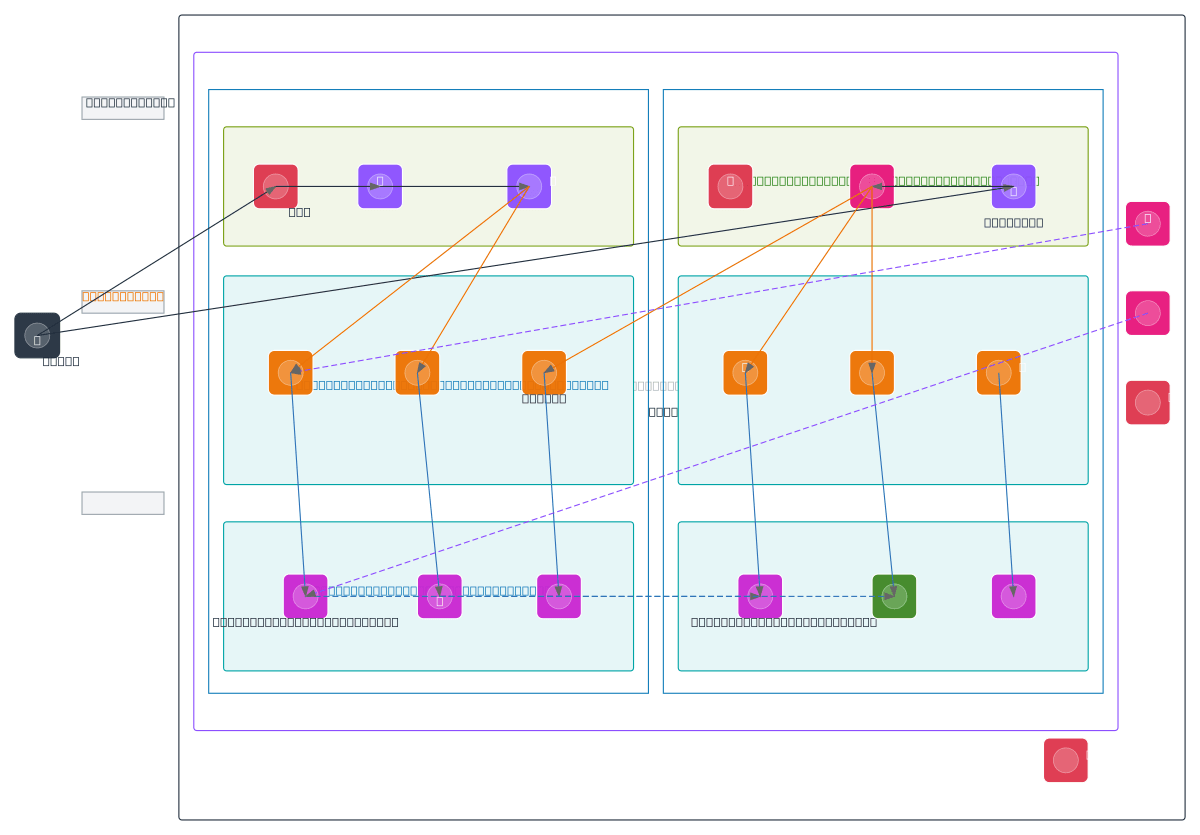
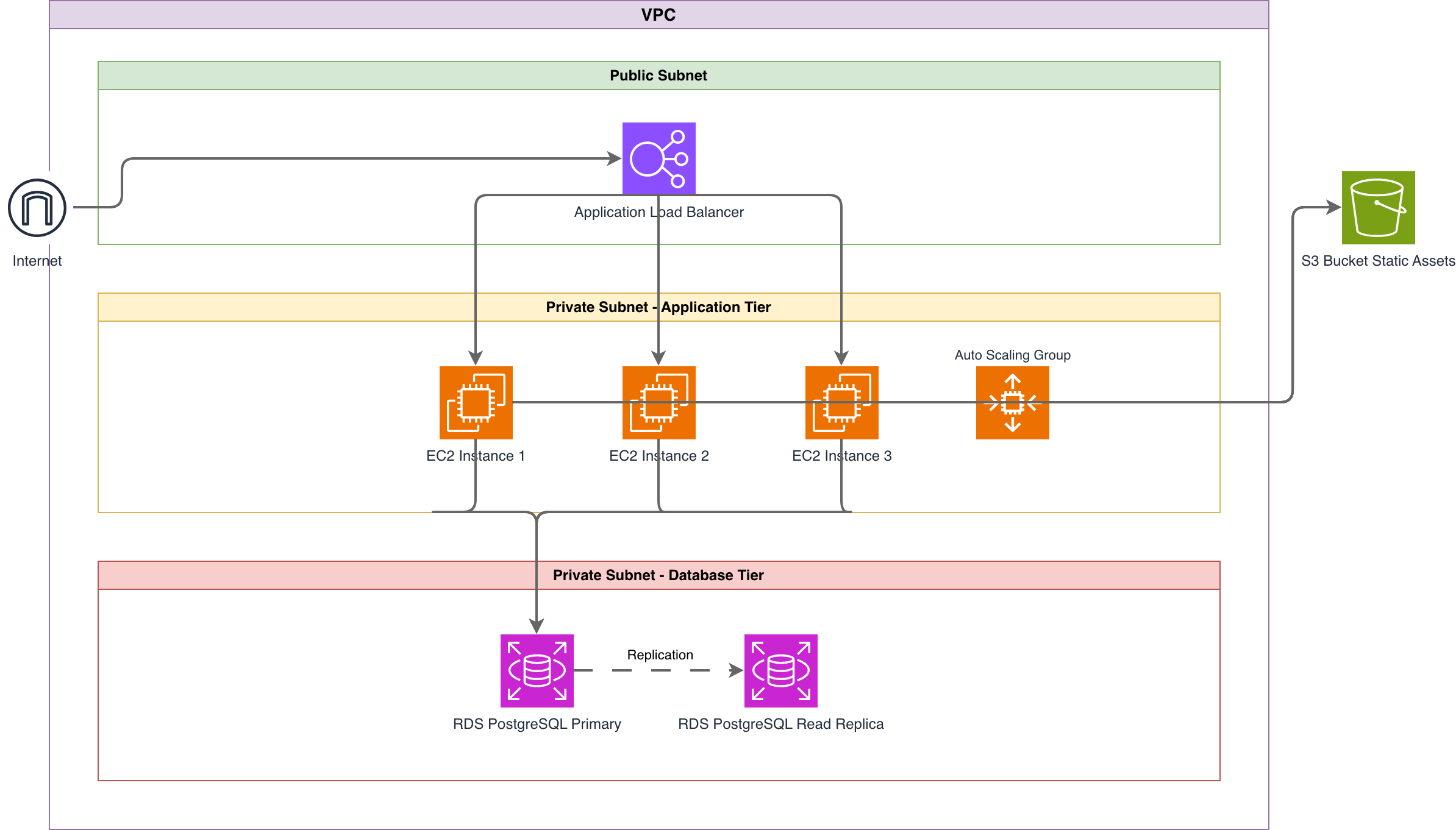
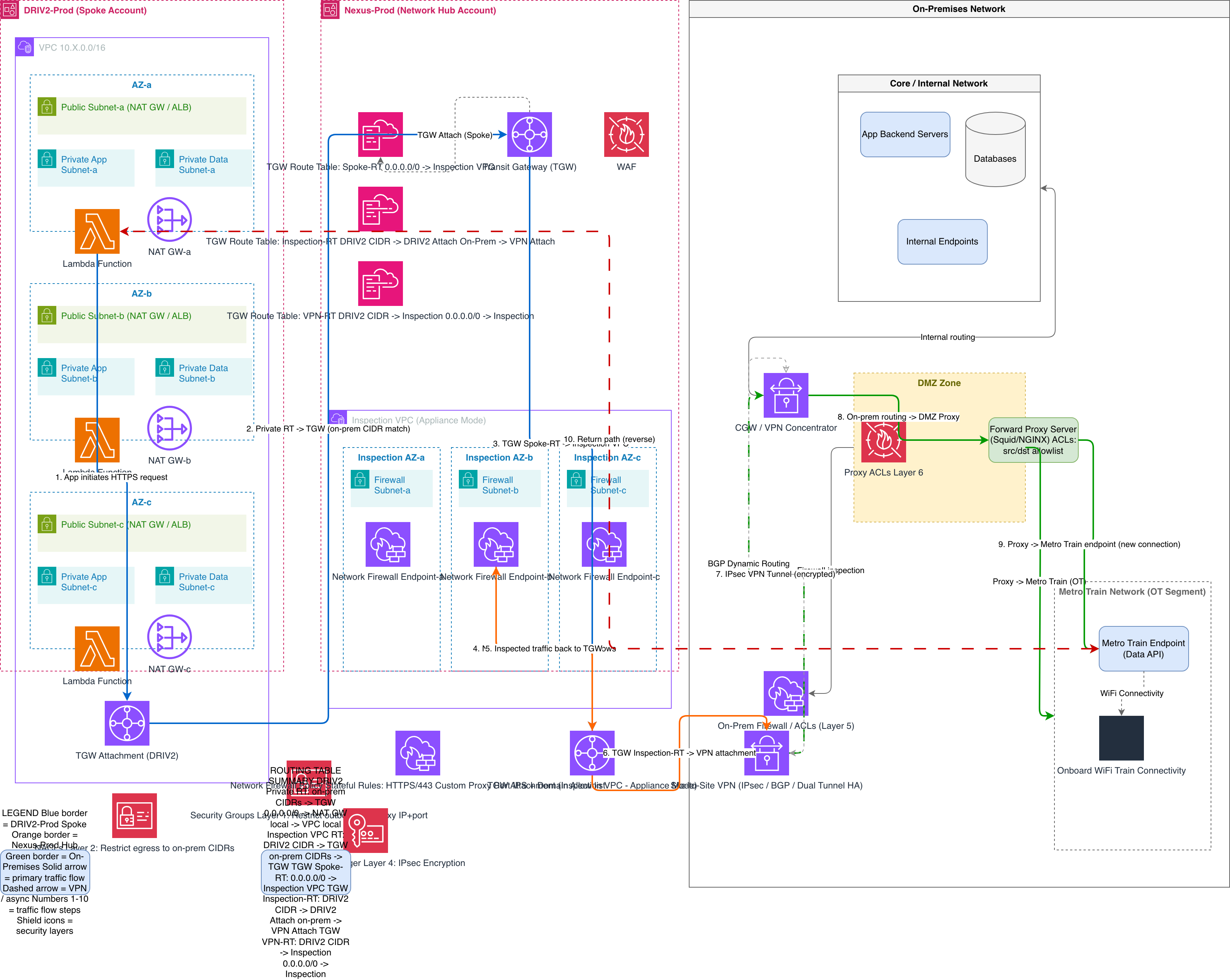
Diagrams.so vs Draw.io export and screenshots
There is more than one way to get an image out of a diagram. The trade-offs are about setup, fidelity, and whether the export is part of a wider editing and sharing workflow.
| Feature | Diagrams.so | Draw.io app | Screenshot |
|---|---|---|---|
| Setup | In-browser, nothing to install | Desktop or web app | None |
| Fidelity | Renders the native XML exactly | Renders the native XML exactly | Whatever is on screen |
| Resolution / transparency | Scale and transparent background | Scale and transparent background | Fixed, usually opaque |
| Vector SVG | Yes | Yes | No |
| Edit / validate first | AI edits + architecture warnings | Manual editing | No |
| Shareable hosted link | Yes, with preview image | Limited | No |
Frequently asked questions
Does converting a .drawio to PNG cost anything?
Importing .drawio files is free on every plan, so you can bring an existing diagram and export it. Some advanced export and editing features sit on the paid plans, but a basic PNG or SVG export of an imported diagram is accessible without a card.
Will the PNG or SVG match my diagram exactly?
Yes. Diagrams.so reads the native mxGraphModel XML and renders from it, rather than photographing the canvas, so the export is pixel-faithful to the source — fonts, colours, and connectors included.
Can I export with a transparent background?
Yes. You can choose a transparent or solid background and set the padding around the diagram, so the image drops cleanly onto a coloured slide, a dark-mode page, or a white print layout.
PNG or SVG — which should I use?
Use PNG for slides, READMEs, and chat, where a fixed raster image is simplest; export at 2x or 3x for sharpness. Use SVG for documentation sites and anywhere the image may be zoomed, since it scales without blurring and keeps text selectable. For print, export the SVG and print it to PDF from your browser — being resolution-independent, it stays sharp at any page size.
Can't Draw.io export images itself?
It can, and it does it well. Converting in Diagrams.so is about the workflow around the export: free import, in-browser with no install, the option to fix the layout or add cloud icons first, architecture warnings, and a shareable hosted link with a preview image.
Can I export to PDF as well?
Not as a one-click export today — the export formats are .drawio, PNG, and SVG. For a print-ready PDF, export the SVG and use your browser's Print to PDF: because SVG is resolution-independent, the diagram stays sharp at any page size, which suits review packs, compliance evidence, and anything headed for a printer.